Lookup
The everyday question
Section titled “The everyday question”From coordinates you already store on accounts, sites, or program locations:
- Inside: “Which district or service area contains this point?”
- Nearest: “What’s the closest feature, and how far away is it?”
Request shape
Section titled “Request shape”Send decimal-degree latitude and longitude, the service name for the layer you want (one of the names provisioned on your API key), and a mode (containment vs nearest). Exact parameter names follow that service’s imported OpenAPI spec—commonly:
| Parameter | Notes |
|---|---|
lat | Latitude (decimal degrees) |
long or z0long | Longitude—confirm label in your imported schema |
service | Must match a name provisioned on your key (exact spelling) |
sType | e.g. in for inside polygon; near for nearest feature |
Lookup is billed under the same setup + usage model as map layers—not a separate product line.
Calling from Flow
Section titled “Calling from Flow”Prerequisites: Salesforce setup (API key, permission set) and OpenAPI import for your service.
- Create or open a Record-Triggered or Screen Flow.
- Add an element → Action.
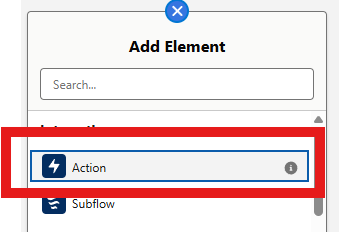
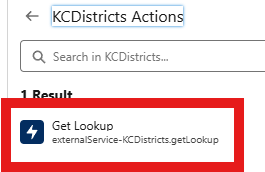
- Under Action, choose External Services → your imported service (for example KCDistricts—use your licensed name).

- Select Get Lookup (
externalService-YourServiceName.getLookup).
- Set Input Values:
- lat / long — from record fields or a prior geocode step
- service — the layer for this call (must match your Swagger import; example shows
KCDistricts) - sType —
infor inside polygon;nearfor nearest feature

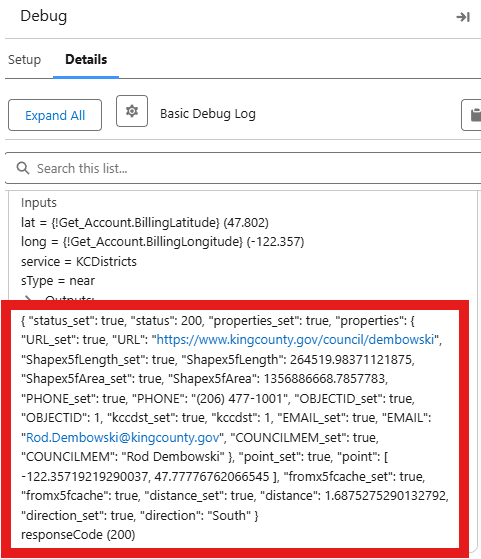
- Map outputs to Flow variables. Run Debug and confirm responseCode
200with populated properties.
Full setup walkthrough with External Service import: Salesforce setup — Steps 5–6.
Response shape
Section titled “Response shape”Structured JSON typically includes:
- Feature properties (district name, codes, IDs—varies by layer)
- Optional distance and direction for near mode
- status and cache hints (e.g.
fromcache) for debugging
Example property fields you may see: NAME, DSTNUM, OBJECTID, area/length measures—your layer defines the set.
Success data is often under Code200 (e.g. Code200.properties), or directly on the action output as in the debug screenshot above. Treat responseCode = 200 as success when that field exists in generated types.
Using results in Salesforce
Section titled “Using results in Salesforce”- Flow decisions — route by district code or inside/outside
- Record updates — write properties to custom fields (e.g.
District__c) - Downstream automation — campaigns, assignment rules, case routing
Related
Section titled “Related”- Extract — features in radius (GeoJSON)
- OpenAPI import
- Troubleshooting