Flow integration
Create the Flow (Quick Start)
Section titled “Create the Flow (Quick Start)”Start from the package template in Quick Start §3 — Create a Flow from the template. Save, activate, and use the Flow API Name in map configuration (§5).
Send to Flow
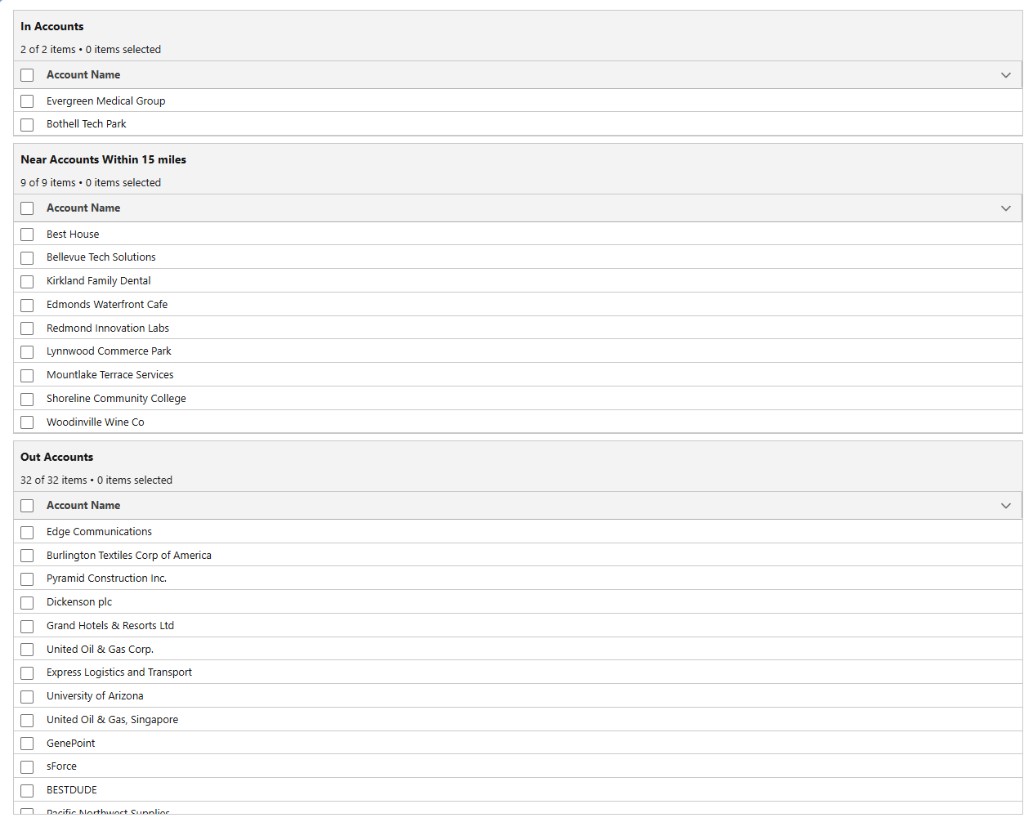
Section titled “Send to Flow”Send to Flow launches your Screen Flow and passes geography results as Text input variables.
| Variable | Content |
|---|---|
inIds | Comma-separated record IDs inside the selection |
outIds | Record IDs outside the selection |
nearIds | Record IDs within the NEAR distance |
nearNum | NEAR distance (when configured) |
Variable names must match your Flow definitions exactly. The Map Your Records TEMPLATE includes these inputs—customize the template Flow after Quick Start §3.
Test end-to-end after Quick Start §7 — Save and activate.
String to Collection
Section titled “String to Collection”The package includes a String to Collection invocable action to split comma-separated IDs into record collections inside Flow.
Example patterns
Section titled “Example patterns”- Add IN records to a campaign; create tasks for NEAR records
- Assign IN records to a field rep by territory
- Update a region field after boundary click
See Configuration for flowApiName and component JSON (Quick Start §5–§6).