
Salesforce setup
Use this checklist to deploy FlowIframeEmbed in a Salesforce org and expose a flow on a public Salesforce Site.
Prerequisites
Section titled “Prerequisites”- You know the Flow API Developer Name to run (for example,
Check_In_Dispatch). - You have an external page ready to host the iframe/widget.
1) Install FlowIframeEmbed
Section titled “1) Install FlowIframeEmbed”Install FlowIframeEmbed using the link for your org type:
| Org | Install link |
|---|---|
| Production | Loading install links… |
| Sandbox | Loading install links… |
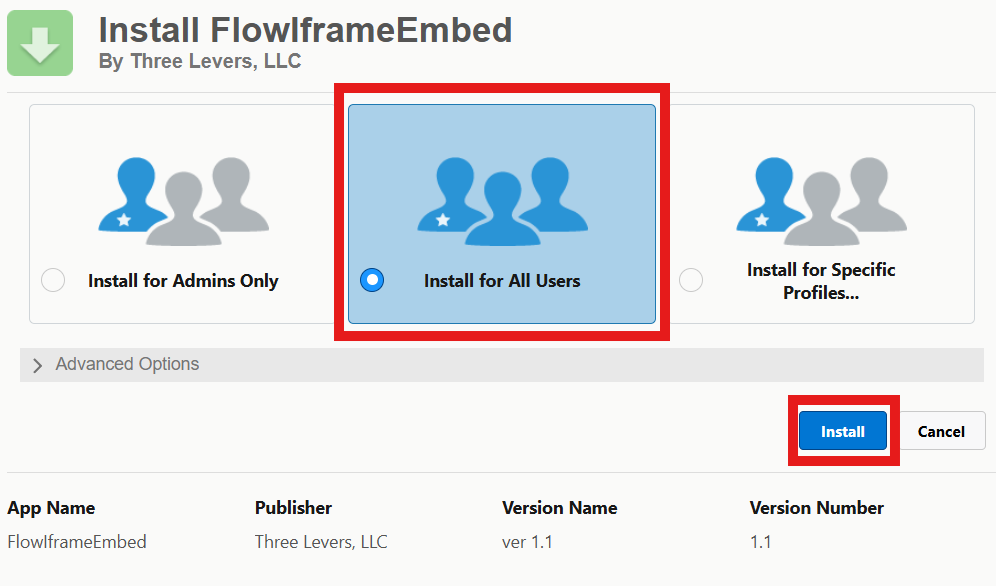
On the Install FlowIframeEmbed screen:
- Select Install for All Users.
- Click Install.
2) Prepare the flow
Section titled “2) Prepare the flow”- Create or open the target Screen Flow.
- Activate the flow.
- If you pass URL inputs, create Text input variables with API names matching planned params (for example
recordId,source). - Test in Flow Builder to confirm it reaches FINISHED.
Restrict which profiles can run the flow (recommended for Site guest access):
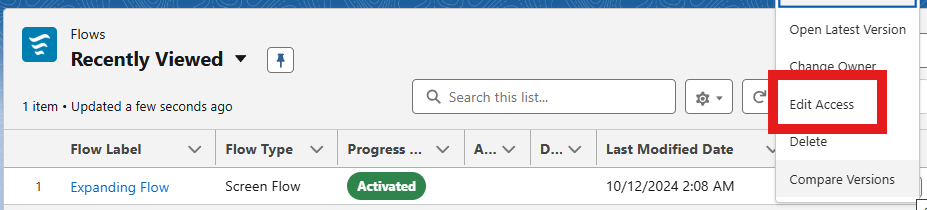
- In Setup → Flows, open the action menu for your flow and choose Edit Access.
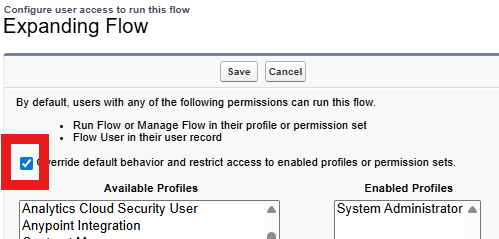
- Check Override default behavior and restrict access to enabled profiles or permission sets.
- Move the Site guest profile (or other profiles that should run the flow) into Enabled Profiles.
- Click Save.
3) Expose the Visualforce page on a Site
Section titled “3) Expose the Visualforce page on a Site”- Go to Setup → User Interface → Sites and Domains → Sites.
- Create a site (or reuse an existing public site).
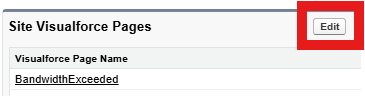
- Under Site Visualforce Pages, click Edit and add
three_levers__FlowIframeEmbed(the namespaced page from the three_levers package). - Publish/activate the site.
Your iframe base URL should look like:
https://your-domain.force.com/site-prefix/apex/three_levers__FlowIframeEmbedNote - namespaced Visualforce page URLs: Managed-package Visualforce pages include the namespace prefix in their API name (three_levers__FlowIframeEmbed). On a Salesforce Site, the public path is /apex/three_levers__FlowIframeEmbed (with your site prefix), not /FlowIframeEmbed. Use the namespaced name when adding the page to the Site and when granting profile access.
4) Grant guest user access
Section titled “4) Grant guest user access”From the site detail page, click Public Access Settings to open the Guest User Profile (or Site profile).
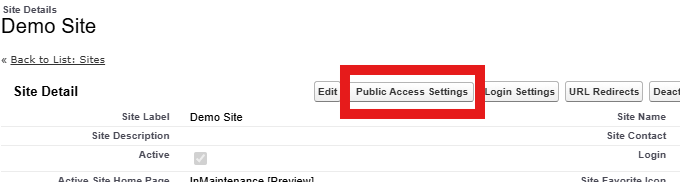
On the profile:
- Enabled Visualforce Page Access: add
three_levers__FlowIframeEmbed. - Enabled Apex Class Access (if the flow uses Apex actions): add required classes.
- Flow Access: open Flow Access, click Edit, and move your flow into Enabled Flows.
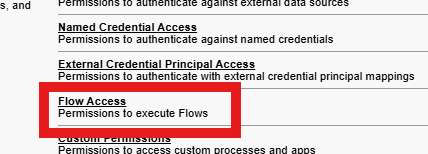
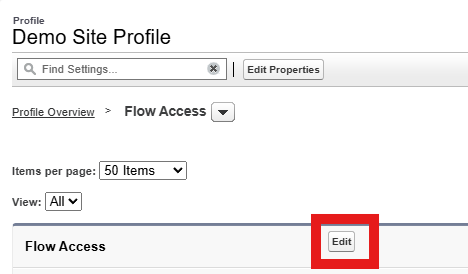
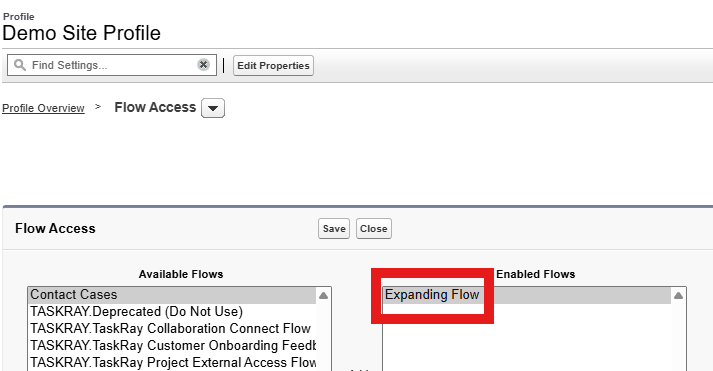
If the flow fails only for guest users, this profile is the first place to check.
5) Configure framing and browser security
Section titled “5) Configure framing and browser security”- In Setup, open Trusted Domains for Inline Frames and click Add Domain for your external parent site (the page that hosts the iframe).
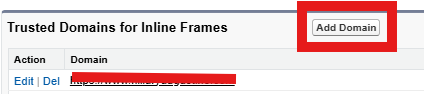
- Configure Salesforce clickjack/CSP settings for your external domain as needed.
- If using the JavaScript widget, set
allowedOriginto your Salesforce site origin:
window.tlFlowEmbed = { embedUrl: 'https://your-domain.force.com/site-prefix/apex/three_levers__FlowIframeEmbed', flow: 'Check_In_Dispatch', allowedOrigin: 'https://your-domain.force.com'};This restricts resize messages to your Salesforce origin.
6) Build the iframe URL correctly
Section titled “6) Build the iframe URL correctly”Required:
flow=<Flow_Developer_Name>
Optional:
endUrl=<https URL>redirects parent window onFINISHEDinputVars=<comma separated allowlist>- extra params that match names in
inputVars
Example:
https://your-domain.force.com/site-prefix/apex/three_levers__FlowIframeEmbed?flow=Check_In_Dispatch&endUrl=https://clientsite.com/thanks&inputVars=recordId,source&recordId=001xx0000001234&source=web7) External page embed
Section titled “7) External page embed”Use either:
- JavaScript widget for URL building + dynamic height.
- Manual iframe plus
postMessagelistener for{ frameHeight: number }.
8) Validation checklist before go-live
Section titled “8) Validation checklist before go-live”- Site URL loads publicly without Salesforce login.
- Flow renders in iframe on client page.
- Dynamic resize works (no inner scrollbar cutoff).
- Flow inputs receive expected values.
endUrlredirect works on completion.- Guest user can complete intended flow paths.
- Fault path tested and shows safe user message.
Common issues
Section titled “Common issues”- Blank iframe / refuses to display: framing/clickjack/CSP missing for host domain.
- Flow does not start: wrong
flowvalue (must be API Developer Name). - Inputs missing:
inputVarsomitted or names don’t match flow variable API names exactly. - No redirect: flow never reaches
FINISHEDorendUrlmissing/invalid. - Works for admin, fails for public users: missing guest profile access.